
Home / How to Verify a PGP Signature

How to Verify a PGP Signature with GnuPG

When GnuPG prints Good signature, it means the file or message matches what a particular private key signed — not that you already know who owns that key. You confirm ownership separately by comparing the key's full fingerprint with an official source before you trust the result.

Signing Is Not Encryption

Encryption hides content from anyone without the decryption key. Signing does the opposite job: it lets anyone with the public key check that content was not altered since a specific key signed it. Verification uses only the signer's public key — you never need their private key to run gpg --verify.

If you still need to generate keys, encrypt messages, or set up 2FA, that workflow lives in the PGP encryption guide. This page covers verification only.
What You Need Before You Run gpg --verify

  • The original file or cleartext message you want to check
  • A detached signature file (.asc or .sig) or a clearsigned message that embeds the signature
  • The signer's OpenPGP public key
  • The signer's full fingerprint from a source independent of the download page that gave you the key
  • GnuPG installed locally — Kleopatra on Windows wraps the same engine if you prefer a GUI

How to Verify a PGP Signature with GnuPG

The steps below follow the GnuPG operational commands manual (checked October 7, 2026). Adjust filenames to match what you downloaded.

  1. Obtain the signer's public key and display its fingerprint. Download the signer's public key from a channel you intend to cross-check — often a project website or signed key file. Run gpg --import signer-key.asc, then gpg --fingerprint to list the full fingerprint of the imported key. Copy the entire fingerprint string; do not rely on the short key ID alone.
  2. Compare the full fingerprint through an independent official channel. Open the project's official documentation or another source you did not download the key from — for example the Tor Project signing-key page when verifying Tor Browser. Confirm every group of hex digits matches. If the fingerprints differ, stop and treat the key as untrusted until you understand why.
  3. Import the key if it is not already in your keyring. When the fingerprint matches, ensure the key is present locally with gpg --import signer-key.asc if needed. GnuPG may merge the import with an existing entry. Re-run gpg --fingerprint and confirm the fingerprint still matches the official record before verifying any files.
  4. Verify a cleartext signed message. Save the complete signed message — including the -----BEGIN PGP SIGNED MESSAGE----- header, body, and signature block — to a file such as signed-message.asc. Run gpg --verify signed-message.asc. GnuPG checks only the signed region inside that file, not extra text you paste elsewhere.
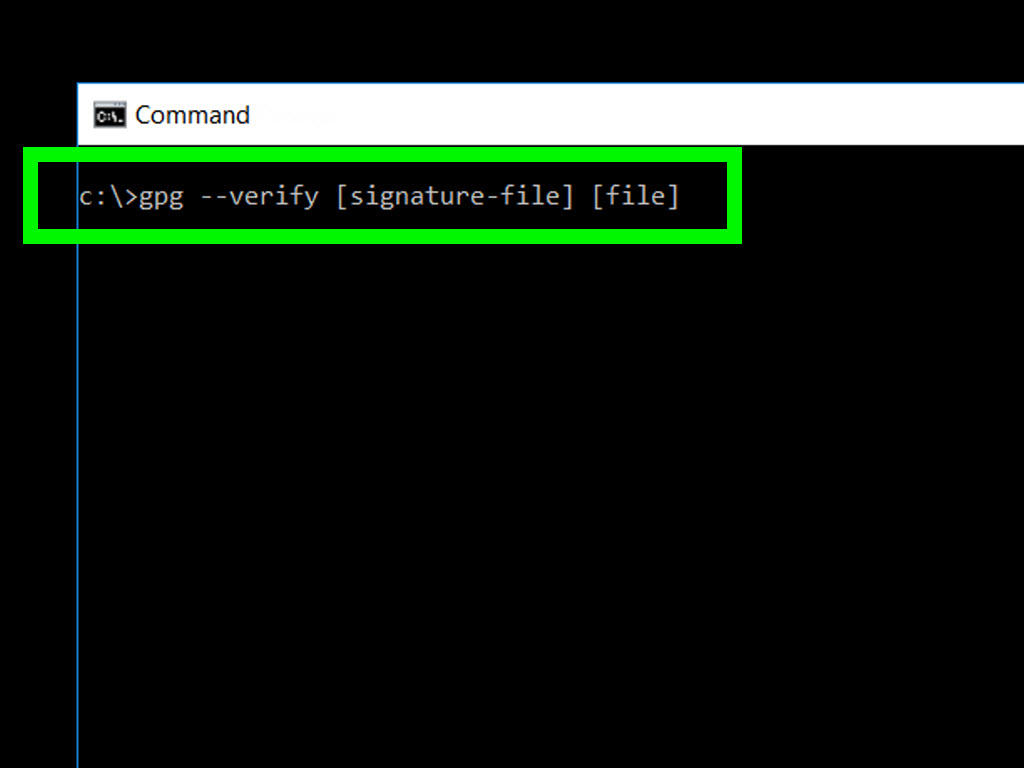
  5. Verify a detached signature by passing both files. For a separate signature file, place the data file and signature in the same folder. Run gpg --verify file.sig file, substituting your real filenames — for example gpg --verify tor-browser-install.exe.asc tor-browser-install.exe. The signature file is first; the signed data file is second.
  6. Read the signer fingerprint and verification result. Look for Good signature, BAD signature, or Cannot check signature: No public key in the output. A good signature names the signing key; compare that key's fingerprint again with your independent source. Note warnings about expired or revoked keys before you treat the result as meaningful.
Terminal window showing GnuPG output with a Good signature line and the signing key fingerprint
GnuPG prints whether the signature matches and which key signed the file. The fingerprint line is what you compare against official documentation.

Worked Example: Verifying a Tor Browser Installer

Software releases are the cleanest place to practice because the Tor Project publishes both the installer and a detached .asc signature, plus written verification steps.

  1. Download the installer and matching .asc file. Get both from torproject.org/download or follow the Tor Browser download guide. Keep them in the same folder.
  2. Import the Tor Project signing key and check its fingerprint. Use the key and fingerprint listed in the Tor Project's current signature-verification instructions (checked October 7, 2026) — not a fingerprint copied from an older blog post.
  3. Run gpg --verify against both files. Example: gpg --verify tor-browser-*.exe.asc tor-browser-*.exe on Windows, with your actual filenames. A Good signature means the installer matches what that key signed. It still does not prove you downloaded from the real site if you never checked the key fingerprint.

Worked Example: A Signed Mirror Announcement

Imagine a plaintext post that lists a new .onion address and ends with a PGP signature block. You import the market's long-published public key, confirm its fingerprint against a bookmark you saved earlier — or against our homepage review only if that page cites the same independent source — and run gpg --verify announcement.asc.

Suppose the result is Good signature. That tells you the text was not tampered with after the key holder signed it. It does not tell you:

  • the operator is honest;
  • the private key was not stolen;
  • the URL is safe to visit; or
  • the address is still the one you should use today.

Signed announcements are worth checking, but a valid signature is only as trustworthy as the key verification step that came before it.

Verifying with Kleopatra (Brief)

On Windows, Kleopatra ships with Gpg4win and uses the same keyring as gpg.

  • Import: File → Import, choose the .asc public key, then open Certificate Details and read the fingerprint.
  • Compare: Match that fingerprint against the project's official page before you proceed.
  • Verify: Select the data file, choose Decrypt/Verify, and point Kleopatra at the detached signature when prompted — or open a clearsigned message directly.

Kleopatra shows the same Good or BAD outcome as the terminal. When results disagree with expectations, drop to gpg --verify for clearer error text.

Reading GnuPG Output

Good signature from "…"
The content matches what that key signed. Confirm the key fingerprint through your independent source before you connect the result to a person or project.
BAD signature from "…"
The file and signature do not match. Common causes: wrong file paired with the signature, truncated download, edited bytes, or line-ending changes in a clearsigned message.
Cannot check signature: No public key
The signing key is not in your keyring. Import the correct public key and retry — do not skip verification because the key is missing.
Expired key
GnuPG may still report a good signature but warn that the key expired. Check the project's current signing key documentation — they may have rotated to a new key with a new fingerprint.
Revoked key
A revoked key should not be trusted for new signatures. Treat the signature as historical at best until the project explains the revocation.
Line-ending or whitespace changes
Clearsigned messages embed newline rules. Editing a signed announcement in a rich-text editor can break verification even when the visible words look identical. Detached signatures on binary files avoid that class of problem.
Wrong file signed
A valid signature on installer-old.exe says nothing about installer-new.exe. Always verify the exact file you plan to run.

Cleartext Signatures Check Only the Signed Region

A clearsigned file wraps the message and signature together. GnuPG verifies the bytes between the PGP SIGNED MESSAGE header and the signature block — not arbitrary commentary you paste above or below the block in a forum post. Attackers sometimes surround a genuine signed paragraph with unsigned URLs.

For installers and PDFs, detached signatures are usually clearer: one file to hash, one signature to check, no ambiguity about which bytes count.

Automation Notes

Scripts should not scrape human-readable gpg --verify output. Use gpgv with a dedicated trusted keyring, or invoke gpg --verify with --status-fd and parse machine-readable status lines as described in the GnuPG automated signature checking documentation (checked October 7, 2026).

Whatever you automate, control which keys enter the trusted keyring explicitly — --assert-signer or a minimal gpgv keyring — instead of importing unknown keys into your personal default keyring.

What a Signature Cannot Prove

  • That the key owner is honest or competent
  • That the private key was not stolen or coerced
  • That a website or onion address is safe to visit
  • That a signed URL or mirror list is still current

Signatures answer a narrow question about integrity and key possession at signing time. They complement — not replace — careful fingerprint work and operational security habits covered in our OPSEC checklist.

Frequently Asked Questions

Can I trust a Good signature on its own?

A Good signature means the file or message matches what that specific key signed. It does not prove the key belongs to who you think until you have checked the full fingerprint through an independent channel. Treat Good signature as one step in a chain, not the final answer.

What is the difference between a key ID and a fingerprint?

A key ID is a short suffix of the fingerprint — often eight hexadecimal characters. Fingerprints are longer and unique in practice for verification work. Attackers can generate keys that share a short ID with a legitimate key, which is why GnuPG documentation tells you to compare full fingerprints, not IDs alone.

Do I need an internet connection to verify a signature?

No. Verification uses your local keyring and the files on disk. You need the signer's public key imported beforehand and an offline copy of the official fingerprint to compare against. Network access helps when fetching keys or documentation, but gpg --verify itself does not require it.

Is a .asc file always a public key?

No. The .asc extension usually means ASCII-armored OpenPGP data, which can be a public key, a detached signature, or a clearsigned message. Read the header inside the file — BEGIN PGP PUBLIC KEY BLOCK, BEGIN PGP SIGNATURE, or BEGIN PGP SIGNED MESSAGE — or let GnuPG tell you when you import or verify.

Can I verify a PGP signature without GnuPG?

You need software that implements OpenPGP. GnuPG is the standard open-source tool; Kleopatra and several libraries wrap the same operations. Online verify-this-signature services shift trust to a third party and are a poor substitute when you are checking security-sensitive downloads or mirror announcements.